Watch ASCII Star Wars in Windows XP, Vista, 7 and 8

9:48 AM 0
A Picture showing Star Wars in command promptEvery one of us has watched Star Wars on television, computer or in a theater. It is the same movie with aliens fighting each other for galaxies and such stuff. There is nothing new in it. But wait, have you watched an ASCII (American Standard Code for Information Interchange) version of Star Wars and that too in Windows using telnet? A network protocol known only to computer wizards. Well if you have not, then you must do it now!

There is a complete copy of Star Wars done entirely in ASCII characters that you can watch in the Windows operating system (or any OS that supports telnet). The only thing required to watch it is an internet connection; speed does not matter.


To watch it on Windows XP, Mac OS X and Linux
  1. Go to Start, Run. (Only for Windows users)
  2. Now type "telnet towel.blinkenlights.nl" without the quotes and press Enter. Users of Mac OS X and Linux can directly execute this code in the terminal window.

On Windows 8, Windows 7 and Windows Vista

Telnet is turned off by default in the latest versions of Windows. So, in order to watch star wars, you must first enable telnet by going to Control Panel › Programs › Turn Windows Feature On or Off and ticking both the telnet check boxes. After doing that, follow the steps given below:-
  1. Go to Start, Search in Windows Vista and Windows 7. On Windows 8, open the main Start page.
  2. Type telnet and press Enter.
  3. In the following command prompt window, type "o" without quotes and press Enter.
  4. Now type "towel.blinkenlights.nl" without the quotes and press Enter.
If you do not need telnet anymore, you can turn it off.

A command prompt window like the one in the image will open with the movie being played in it. See the movie yourself. Did you enjoy watching this new version of Star Wars? Well, I did and know it for sure that you would have too.

Read more...

Transfer Files on Android wirelessly using Dropbox

9:43 AM 0
Transfer files android wireless
Transferring files wirelessly on Android using Dropbox is easy
As great as smart phones have become when it comes to handling our digital lives, there are still a few tiresome concessions we make for their use. One is having to plug our device into our computer in order to transfer files. Some manufacturers such as Apple have launched new services to alleviate that using cloud computing. Here is one way you can send files to your Android based phone completely free without the help of a USB cable.


Step 1: On your computer, navigate to Dropbox and download the application installer.

Step 2: Once the application has been downloaded, run it and an initial set up wizard should begin.

Step 3: Using the initial set up wizard, create a Dropbox account by entering your name, email address and computer name.

Step 4: A folder called Dropbox should now be available on your computer. Put any file you wish to wirelessly send to your phone in this folder.

Step 5: On your Android phone, open your App drawer and open the Market application.

Step 6: Search for Dropbox and install the application.

Step 7: Once installed, return home and re-open your App drawer and start up the Dropbox app.  

Step 8: Tap the existing Dropbox account button and log in using the account you just created in step 3.

You should now see any files you have in the Dropbox folder. Transferring additional files to your phone wirelessly is now as easy as dragging them into the folder and starting the app on your phone. Dropbox allows you to send up to 2GBs of data for free. Any files larger than that will either have to be transferred via hard connection or you’ll have to sign up for a 50 or 100 GB plan.
Read more...

Download Flash Video on your PC

9:37 AM 0
More than 72 hours of video content is uploaded to the internet per minute. With so much video content being uploaded, people have felt the need to download videos but most users don't have the tools to download Flash videos. So what does a user do?

Well nothing, s/he just reads this article and learn the many ways he can use to download Flash videos.


Download Flash Videos


Web's Video Format: Most websites use the FLV( Adobe Flash Video) format to display the various types of videos. The reason for this is that FLV files use comparatively less amount of storage space for the same video quality.


How to Play Flash Videos: To play FLV media in browsers, you need to have Adobe's Flash Player plugin installed. To play FLV formatted videos in your PC, you need to have a media player capable of playing FLV videos. VLC Media player is one such free media player which can easily play FLV files.

Download Flash Videos via Internet Explorer: This technique uses copying FLV videos from Internet Explorer's temporary files cache. A temporary files cache is a collection of items which are stored on the disk to load them quickly without downloading them again. Not only Internet Explorer, but almost all browsers have a temporary files cache. But most of these browsers store the files in cache without any extension which leads to complexity in finding saved videos. On the other hand, Internet Explorer stores the file "as it is" in its cache. To download FLV Videos via Internet Explorer, follow the instructions given below:-


For Internet Explorer 6 and earlier versions:-
  1. Make sure you are logged in as an administrator.
  2. Play the video of your choice in Internet Explorer.
  3. Go to Control Panel. Click on switch to classic view in the sidebar.
  4. Click on Folder Options.
  5. Click on View Tab and encircle "Show hidden files and folders".
  6. Go to My Computer.
  7. Click on your System Drive.(The drive containing your Windows files.)
  8. Click on Documents and Settings.
  9. Click on your User name.
  10. Click on Local Settings.
  11. Copy your Temporary Internet Files folder and paste it to your desktop.
  12. Search the pasted folder for "*.flv" without the quotes. And play the files to find your video. Copy your found video and paste it to the location of your choice.

For Internet Explorer 7 ,8 and 9:-
  1. Make sure you are logged in as an Administrator.
  2. Play the video of your choice in Internet Explorer.
  3. Go to Control Panel. Click on switch to classic view in the sidebar.
  4. Click on Folder Options.
  5. Click on View Tab and encircle "Show hidden files and folders", de-select "Hide protected Operating System Files" and de-select "Hide Extensions for Known Filetypes".
  6. Windows XP Users, follow the instructions given above for IE6 after Step 5.
  7. Windows 7 and Windows Vista users, navigate to your system drive.
  8. Navigate to Username\AppData\Local\Microsoft\Windows\Temporary Internet Files\
  9. Add "Low\Content.IE5" to the location in the address bar.
  10. There will be some folders with random alphanumeric names.
  11. Opening those folders would display a security message. Click Yes.
  12. You cannot search these folders so, you will have to look into them to find the video of your choice. (This can be simplified by selecting "Details View" and sorting the contents by size. Videos being of larger size would be at the top of the list.)
  13. Then copy the found video and paste it to the location of your choice.
  14. You can also copy those folders and paste them to your desktop. This will enable you to search them easily.

Download Flash Video


Downloading FLV Videos via third party software: Due to the popularity of watching videos online, many third party companies have manufactured many software programs to download Flash videos. A simple web search containing "free software to download Flash videos" is likely to return a lot of such software.


Downloading FLV videos via Real Media Player: Real Media Player states that it is the best free media player available to play, manage and download all your mp3, flash and video files. I do not quite agree but still, Real Media Player offers a very good plugin with which you can download FLV videos easily. Whenever Real Media Player detects a flash video, it offers an option to download the video right on top of it.


Downloading Flash Videos in Mobiles: Mobile Users can use Bolt Browser to download FLV videos directly to their mobiles. Bolt automatically re-formats the video into a version supported by the mobile which can then be easily viewed. Update: Bolt Browser has been discontinued. Skyfire can also be used to download flash videos directly formatted according to your specific mobile.

Flash Videos Videos
Charlie bit my finger. Most popular online Video

Third Party Websites to Download Flash videos: There are many free third party websites on the internet which offer you to download FLV videos just by entering the URL of the video, selecting the format and clicking on the download button. Few such sites are:-


1.  Keepvid: Keepvid allows you to download Flash videos in a wide variety of formats including .MP4, .3GP( high and low quality) and yeah, .FLV format.
2.  SaveVid: SaveVid  also offers downloading flash videos in various formats with the option of downloading them in different qualities.
3.  Vixy: Vixy offers you to download FLV videos in .MP4 format, AVI format, .MOV for Macintosh, .3GP format for mobiles and .MP3 format for Audio Players.


So, that brings us to the end of this article. If you know some other ways to download Flash videos, feel free to send me an email and they will be included in this article.
Read more...

Change Facebook Color and Theme

9:23 AM 0
Facebook is a social networking site which enables people to connect with friends and people around. That's how Facebook is usually introduced. However, Facebook is beyond the need of being introduced as almost everyone is on it. Despite its popularity, Facebook has one flaw; the default blue theme is really boring.

Some even consider it an annoyance while visiting Facebook. As Facebook does not allow users to change its theme like MySpace used to, users are left with no other option but to bear the theme Facebook wants them to use.

However, it is relatively easy to change the Facebook theme to a stylish one using an addon and custom themes which are available free of cost on the internet.

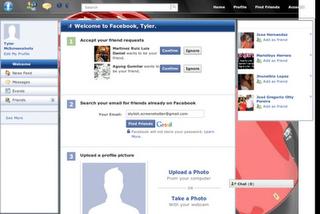
An example of the final outcome would be something like in the image.


Change Facebook Theme
This is the Ferrari theme. More themes are available for you to choose.


Requirement: The basic requirement for this to work is to have Mozilla Firefox or Google Chrome as your browser.

Steps to achieve this: If you use Google Chrome then Scroll down, Mozilla Firefox users should carry out the following steps to successfully change Facebook theme.

  1. Open Mozilla Firefox and install " Stylish "addon.
  2. Follow the basic steps to install the addon.
  3. Restart Firefox after successfully installing the Stylish addon.
  4. Login to your Facebook Account and click on the small 'S' button in your Firefox status bar.
  5. Click on "Find Styles for this Site" to open a new tab with free themes to use for Facebook.
  6. Click on any theme and a preview will be shown.
  7. If everything is fine in the previewed theme, click on "Install with Stylish" button at the top right corner of the page.
  8. A dialog box will open.
  9. Click on Install in the dialog box.

Steps for Google Chrome
  1. Install Stylish for Chrome from the Chrome Web Store.
  2. Navigate to Facebook.com and click on the S button.
  3. Click on "Find Styles for this Site" to open a new tab with free themes to use for Facebook.
  4. Click on any theme and a preview will be shown.
  5. If everything is fine in the previewed theme, click on "Install with Stylish" button at the top right corner of the page.

Stylish Button


facebook theme change

Install with stylish

Installing Ferrari theme for Stylish Firefox

Now whenever you open Facebook, it will show the theme that you have installed with Stylish instead of the boring old blue theme.
Read more...