Showing posts with label Computer. Show all posts

Download Internet Download Manager Fully Activated (No Crack or Serial Required)

1:55 PM 1

Internet Download Manager Preactivated for Free


Internet Download Manager (IDM) is a tool to increase download speeds by up to 5 times, resume and schedule downloads. Comprehensive error recovery and resume capability will restart broken or interrupted downloads due to lost connections, network problems, computer shutdowns, or unexpected power outages. Simple graphic user interface makes IDM user friendly and easy to use.Internet Download Manager has a smart download logic accelerator that features intelligent dynamic file segmentation and safe multipart downloading technology to accelerate your downloads. Unlike other download managers and accelerators Internet Download Manager segments downloaded files dynamically during download process and reuses available connections without additional connect and login stages to achieve best acceleration performance.

But keep in mind this software is not free, not even its trial, but today I'm sharing fully activated version of this software and also you don't have to pay or crack it down.

Click Here to Download >> Download IDM

If you face any issue regarding this, please do write in comment box, we will help you out.
Please share :)


Read more...

Lock Folders Using NotePad

11:41 AM 0

Know how you can Lock you folders simply using Notepad


Everyone has some confidential files, documents, etc.. which are to be hided from others, especially while using a common computer in home or elsewhere. There is no need for you to search for software to a accomplish this task of locking folder. Just follow the below steps and get it done within a fraction on second! 


Steps to follow:

Open Notepad and paste the following program in the Notepad,


  • Replace "Your Password Here" with your desired password.
  • Save the file anywhere in the system with a .bat suffix. Eg. something.bat 
  • Double click on the something.bat file which you created, a new folder with name Locker will be created on the same location of .bat file you saved.
  • Copy The files you need to password protect into this Locker Folder.
  • Now open the .bat file again and type Y and then press Enter to lock your folder.
  • To unlock your file again, you need to open the .bat file and enter your password.
  • That's it! Please comment if you find difficulty in doing this. I will surely help you :)
Read more...

Windows Hacking and Some Very Useful Tricks

2:16 AM 0

WINDOWS HACKING


As we heard that Microsoft officially closed security updates for Windows XP on 8th Apr 2014. But here you can do Security Updates for Windows XP. Below method can updates your Windows XP up-to April 2019.


STEPS TO FOLLOW:
1. Open Notepad
2. Copy and paste the follow code
Windows Registry Editor Version 5.00
[HKEY_LOCAL_MACHINE\SYSTEM\WPA\PosReady] “Installed”=dword:00000001
3.Save file as .reg extension
4. Double click on it
When it runs then it you automatically get notification for Windows Update.

CLEAN UP THE RAM, IF YOUR COMPUTER IS SLOW

To clean up your RAM you just need to follow the simple steps given below:
1) First of all you need to open Notepad
2) Type FREEMEM=SPACE(64000000)
3) Now you have to save it as ram.vbs , remember .vbs must be added in the name.

4) Now run the script.


IF YOU PC IS HANGED

Press shift+ctrl+esc or ctrl+alt+del

And then click on ‘END TASK’
Now your  PC will be running fine.


 SHOW YOUR NAME IN TASKBAR


Try this trick to add up ur name in place of AM and PM beside time Its simple
Step-1:- Navigate to -> Start -> Control Pannel -> Regional and Language Option -> Click on Customize -> Go to TIME Tab -> Change AM symbol and PM symbol from AM and PM to ur name -> Apply -> Ok …
Did It change? If not, follow step-2 below.
Step2:- Now go to time in taskbar and Double Click it to open “Date and time property” …Look place where time changes in digital form i.e. 02:47:52 AM , click to arrow to change the AM or PM by selecting and press arrow. It will Show ur name or name that was entered by u, Apply -> OK

Read more...

Activate Windows 10 For Free 100% Working

3:25 AM 2

Today I'm gonna tell you how to Activate Windows 10 Forever without any license.


You just need to download a software, that I have uploaded to my MediaFire,
For the security purpose I have set a password.
Here is the link : Download
Password : eaan

Just download this software and install on your PC, as soon as you install it, your PC will be fully activated. 
This software is tested on various edition of Windows, and it works 100%.

Note -  Windows Defender or Antivirus might detect this software as Virus so please turn them off before installing this software.

If you face any issue, please comment below, we will help you out.
Read more...

Shut Down Your Computer in 2 Steps.

9:56 AM 0
  Sometimes we need to automatically shutdown the computer when        we're not in the desk. This 2 Steps Automatically Shutdown          Computer method also needed when we want to sleep,
 but we want the computer turned off at a specified time
  we provide. .


1. Click Run
2. Add in the textbox shutdown /s /f /t 3600


Note:

/s = We want to Shutdown the computer, if you want to restart the computer, use /r
/f = Force shutdown, it means that if any process prevent the computer to shutdown, the process will be killed.
/t = Time in second, 3600 it means 1 hour

Enjoy this tricks..share and comments.
Read more...

Watch ASCII Star Wars in Windows XP, Vista, 7 and 8

9:48 AM 0
A Picture showing Star Wars in command promptEvery one of us has watched Star Wars on television, computer or in a theater. It is the same movie with aliens fighting each other for galaxies and such stuff. There is nothing new in it. But wait, have you watched an ASCII (American Standard Code for Information Interchange) version of Star Wars and that too in Windows using telnet? A network protocol known only to computer wizards. Well if you have not, then you must do it now!

There is a complete copy of Star Wars done entirely in ASCII characters that you can watch in the Windows operating system (or any OS that supports telnet). The only thing required to watch it is an internet connection; speed does not matter.


To watch it on Windows XP, Mac OS X and Linux
  1. Go to Start, Run. (Only for Windows users)
  2. Now type "telnet towel.blinkenlights.nl" without the quotes and press Enter. Users of Mac OS X and Linux can directly execute this code in the terminal window.

On Windows 8, Windows 7 and Windows Vista

Telnet is turned off by default in the latest versions of Windows. So, in order to watch star wars, you must first enable telnet by going to Control Panel › Programs › Turn Windows Feature On or Off and ticking both the telnet check boxes. After doing that, follow the steps given below:-
  1. Go to Start, Search in Windows Vista and Windows 7. On Windows 8, open the main Start page.
  2. Type telnet and press Enter.
  3. In the following command prompt window, type "o" without quotes and press Enter.
  4. Now type "towel.blinkenlights.nl" without the quotes and press Enter.
If you do not need telnet anymore, you can turn it off.

A command prompt window like the one in the image will open with the movie being played in it. See the movie yourself. Did you enjoy watching this new version of Star Wars? Well, I did and know it for sure that you would have too.
Read more...

Transfer Files on Android wirelessly using Dropbox

9:43 AM 0
Transfer files android wireless
Transferring files wirelessly on Android using Dropbox is easy
As great as smart phones have become when it comes to handling our digital lives, there are still a few tiresome concessions we make for their use. One is having to plug our device into our computer in order to transfer files. Some manufacturers such as Apple have launched new services to alleviate that using cloud computing. Here is one way you can send files to your Android based phone completely free without the help of a USB cable.


Step 1: On your computer, navigate to Dropbox and download the application installer.

Step 2: Once the application has been downloaded, run it and an initial set up wizard should begin.

Step 3: Using the initial set up wizard, create a Dropbox account by entering your name, email address and computer name.

Step 4: A folder called Dropbox should now be available on your computer. Put any file you wish to wirelessly send to your phone in this folder.

Step 5: On your Android phone, open your App drawer and open the Market application.

Step 6: Search for Dropbox and install the application.

Step 7: Once installed, return home and re-open your App drawer and start up the Dropbox app.  

Step 8: Tap the existing Dropbox account button and log in using the account you just created in step 3.

You should now see any files you have in the Dropbox folder. Transferring additional files to your phone wirelessly is now as easy as dragging them into the folder and starting the app on your phone. Dropbox allows you to send up to 2GBs of data for free. Any files larger than that will either have to be transferred via hard connection or you’ll have to sign up for a 50 or 100 GB plan.
Read more...

Download Flash Video on your PC

9:37 AM 0
More than 72 hours of video content is uploaded to the internet per minute. With so much video content being uploaded, people have felt the need to download videos but most users don't have the tools to download Flash videos. So what does a user do?

Well nothing, s/he just reads this article and learn the many ways he can use to download Flash videos.


Download Flash Videos


Web's Video Format: Most websites use the FLV( Adobe Flash Video) format to display the various types of videos. The reason for this is that FLV files use comparatively less amount of storage space for the same video quality.


How to Play Flash Videos: To play FLV media in browsers, you need to have Adobe's Flash Player plugin installed. To play FLV formatted videos in your PC, you need to have a media player capable of playing FLV videos. VLC Media player is one such free media player which can easily play FLV files.

Download Flash Videos via Internet Explorer: This technique uses copying FLV videos from Internet Explorer's temporary files cache. A temporary files cache is a collection of items which are stored on the disk to load them quickly without downloading them again. Not only Internet Explorer, but almost all browsers have a temporary files cache. But most of these browsers store the files in cache without any extension which leads to complexity in finding saved videos. On the other hand, Internet Explorer stores the file "as it is" in its cache. To download FLV Videos via Internet Explorer, follow the instructions given below:-


For Internet Explorer 6 and earlier versions:-
  1. Make sure you are logged in as an administrator.
  2. Play the video of your choice in Internet Explorer.
  3. Go to Control Panel. Click on switch to classic view in the sidebar.
  4. Click on Folder Options.
  5. Click on View Tab and encircle "Show hidden files and folders".
  6. Go to My Computer.
  7. Click on your System Drive.(The drive containing your Windows files.)
  8. Click on Documents and Settings.
  9. Click on your User name.
  10. Click on Local Settings.
  11. Copy your Temporary Internet Files folder and paste it to your desktop.
  12. Search the pasted folder for "*.flv" without the quotes. And play the files to find your video. Copy your found video and paste it to the location of your choice.

For Internet Explorer 7 ,8 and 9:-
  1. Make sure you are logged in as an Administrator.
  2. Play the video of your choice in Internet Explorer.
  3. Go to Control Panel. Click on switch to classic view in the sidebar.
  4. Click on Folder Options.
  5. Click on View Tab and encircle "Show hidden files and folders", de-select "Hide protected Operating System Files" and de-select "Hide Extensions for Known Filetypes".
  6. Windows XP Users, follow the instructions given above for IE6 after Step 5.
  7. Windows 7 and Windows Vista users, navigate to your system drive.
  8. Navigate to Username\AppData\Local\Microsoft\Windows\Temporary Internet Files\
  9. Add "Low\Content.IE5" to the location in the address bar.
  10. There will be some folders with random alphanumeric names.
  11. Opening those folders would display a security message. Click Yes.
  12. You cannot search these folders so, you will have to look into them to find the video of your choice. (This can be simplified by selecting "Details View" and sorting the contents by size. Videos being of larger size would be at the top of the list.)
  13. Then copy the found video and paste it to the location of your choice.
  14. You can also copy those folders and paste them to your desktop. This will enable you to search them easily.

Download Flash Video


Downloading FLV Videos via third party software: Due to the popularity of watching videos online, many third party companies have manufactured many software programs to download Flash videos. A simple web search containing "free software to download Flash videos" is likely to return a lot of such software.


Downloading FLV videos via Real Media Player: Real Media Player states that it is the best free media player available to play, manage and download all your mp3, flash and video files. I do not quite agree but still, Real Media Player offers a very good plugin with which you can download FLV videos easily. Whenever Real Media Player detects a flash video, it offers an option to download the video right on top of it.


Downloading Flash Videos in Mobiles: Mobile Users can use Bolt Browser to download FLV videos directly to their mobiles. Bolt automatically re-formats the video into a version supported by the mobile which can then be easily viewed. Update: Bolt Browser has been discontinued. Skyfire can also be used to download flash videos directly formatted according to your specific mobile.

Flash Videos Videos
Charlie bit my finger. Most popular online Video

Third Party Websites to Download Flash videos: There are many free third party websites on the internet which offer you to download FLV videos just by entering the URL of the video, selecting the format and clicking on the download button. Few such sites are:-


1.  Keepvid: Keepvid allows you to download Flash videos in a wide variety of formats including .MP4, .3GP( high and low quality) and yeah, .FLV format.
2.  SaveVid: SaveVid  also offers downloading flash videos in various formats with the option of downloading them in different qualities.
3.  Vixy: Vixy offers you to download FLV videos in .MP4 format, AVI format, .MOV for Macintosh, .3GP format for mobiles and .MP3 format for Audio Players.


So, that brings us to the end of this article. If you know some other ways to download Flash videos, feel free to send me an email and they will be included in this article.
Read more...

Make your Computer greet Everytime when You Start up the System

9:03 AM 0
Do you watch movies? Have you always loved the way how Computers in movies welcome their users by calling out their names? I bet that you too would want to know how you can achieve similar results on your PC and have a computer said welcome.

Then you are at the right place, this article describes exactly how you can make your computer welcome you like this.

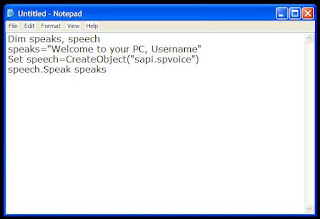
With this trick, you can make your Computer welcome you in its computerized voice. You can make your Windows based computer say "Welcome to your PC, Username."

Make Windows Greet you with a Custom Voice Message at Startup

To use this trick, follow the instructions given below:-


  1. Click on Start. Navigate to All Programs, Accessories and Notepad.
  2. Copy and paste the exact code given below.

     3.  Replace Username with your own name.
     4.  Click on File Menu, Save As, select All Types in Save as Type option, and save the file as Welcome.vbs or "*.vbs".
     5.  Copy the saved file.

     6.  Navigate to C:\Documents and Settings\All Users\Start Menu\Programs\Startup (in Windows XP) and to C:\Users\ {User-Name}\AppData\Roaming\Microsoft\Windows\Start Menu\Programs\Startup (in Windows 8, Windows 7 and Windows Vista) if C: is your System drive. AppData is a hidden folder. So, you will need to select showing hidden folders in Folder options to locate it.
     7.  Paste the file.


 Make your Computer Welcome you at startup

Now when the next time you start your computer, Windows will welcome you in its own computerized voice.

Note: For best results, it is recommended to change sound scheme to No Sounds.
You can change the sound scheme to No Sounds by following the steps given below:-
  1. Go to Control Panel.
  2. Then click on Switch to Classic View.
  3. Then Click on Sounds and Audio Devices.
  4. Then Click on the Sounds Tab.
  5. Select No Sounds from the Sound Scheme option.
  6. If you wish to save your Previous Sound Scheme, you can save it by clicking Yes in the popup menu.
  7. Click on OK.
Change Sound Scheme to No Sounds

Try it yourself to see how it works. In my personal opinion, this is an excellent trick. Whenever I start my PC in front of anybody and the PC welcomes me, the fellow is left wondering how brilliant a computer do I have.
Read more...

Watch Any Video Online Without Any Software

8:14 AM 0
In this article , you will know how you can watch any video online( audio too)

1) Just copy the download link on the content.

2) Paste it in your address bar of your browser.

3) Now you just have to do that you replace "http" protocol  with "rtsp" protocol.
as shown in figure:


now hit enter and enjoy the trick.
Read more...

Create Tic Tac Toe game Yourself

9:54 AM 3
Guys, Have you ever imagine to create any game yourself.

Now you can create Tic Tac Toe game in few simple steps:

1) Copy whole script.


2) Now open Notepad.

3) Paste the script.

4) and Save As game.bat ( .bat must be added )

• yes, you have done now, 
ply the Game and enjoy the trick.


Read more...

Partition Of Hard Disks Without Formatting

2:25 AM 0
Windows 7 and above have special ability to shrink partition and create a new one without losing any data and formatting existing partition.

Before creating a new partition from old one, make sure the existing drive is 50% empty so that you don’t lose any data.

How to partition hard drive without formatting in Win7 ?

Step 1: Right-click on Computer in Start menu and select Manage

Step 2: Double-click on Storage and then select Disk Management

Step 3: In this screen you see all the drives present on your computer.

Suppose you wan to partitiondrive D which has size of 20GB and want to create another drive G of 10GB fromdrive D, so right-click on drive D and select option Shrink

Step 4: In next windows, typein 10000 for 10GB in Enter the amount of space to Shrink in MB option, you can replace 10000(for 10GB) with anything else of your choice

Step 5: Click on Shrink button and wait for few minutes

Step 6: After a while, you will find a new Unallocated space which would be about same size, now right click on it and select option – New Simple Volume .

Step 7: Click next twice, if you want to continue with the same size

Step 8: Select the drive letter for the new drive and click next

Step 9: Keep the default settings i.e. Format this volume and make sure NTFS is selected

Step 10: Click next and then finish, wait for a while! your new drive has been created without formatting any other drive

Please remember that formatting drive and creating new drive is very serious stuff which may sometimes requires patience, not going according to steps and unexpected shutdown may destroy your hard drive so be careful with this stuff.
Read more...

Make your Key Board LED dancing

11:14 PM 2
keyboard dancing led

In this part i will show you to make interesting file using notepad which will make keyboard led to dance. basically we will be creating a visual basic script.

    1. Open Notepad and copy below codes into it.


    2. Then save this file as dance.vbs (name can be anything but .vbs is must)
    3. Open your save file and see your keyboard led blinking like disco lights.

• How to Disable it?

1) Goto Task Manager.
2) Then in Processes tab , look for "wscript.exe"
3) Right-Click on "wscript.exe" and then click on End Task.
Read more...

Trick To Create dangerous virus

11:10 PM 0
In this trick we will be creating virus in notepad using batch file programming. This virus is really simple to create yet very dangerous. opening this file we delete or format C drive of your computer.

    1. Open Notepad and copy below code into it.


    2. Then Save this file as virus.bat
    3. Now, running this file format C Drive.
Read more...

Find Serial Key of Any Software

9:40 AM 0
Most of you download and use pirated software from torrents or any such other sites, but sometime it gets very difficult to find serial key of those softwares. I will make it easy for you by showing you simple yet very intersting google trick which will allow you to find serial key of any software very easily.

How To Find Serial Key Of Any Software ?

The key 94FBR is a part of  Office 2000 Pro CD activation key that is widely distributed as it bypasses the activation requirements of Office 2000 Pro. By searching for 94fbr and the product name, you are guarantee that the pages that are returned are pages dealing specifically with the product you're wanting a serial for. Follow simple steps given below to learn this trick

    1. Go to Google
    2. Then type  Software Name 94FBR
  • Replace Software Name with the name of software whose serial key you want to find
  • Eg: To find serial key of Nero i will type Nero 94fbr
    3. Now press Enter and you will find serial key of software you are looking for as shown below.
google trick to find serial key
Read more...

Make Undestroyable, undeleteable & unrenameable folder

9:38 AM 0
creating undeleteable files
In this tutorial you will learn cool and simple trick to Create an undeletable and unrenamable Folders In Windows operating system. Most of the Peoples are not aware that it is possible to create Undeletable, Unrenamable folder in windows without any software. To Test this concept just follow simple steps given below.

Try to make a new folder in windows & give it name con,aux, lpt1, lpt2, lpt3 up to lpt9. you won't be allowed to create folder with above mentioned names, Because they are reserved words in windows.

How To Create Undeletable And Unrenamable Folders ?

  1. Go to Start and then Click on Run
  2. Type cmd & hit enter (To open Command Prompt ).
  3. Remember you cannot create Undeletable & unrenamable folder in your root directory (i.e. where the windows is installed) That means you can't make this kind of folder in C: drive if you installed windows on C:
  4. Type D: or E: and hit enter
  5. Type md con\ and hit enter (md - make directory)
  6. You may use other words such as aux, lpt1, lpt2, lpt3 up to lpt9 instead of con in above step.
  7. Open that directory, you will see the folder created of name con.
  8. Try to delete that folder or rename that folder windows will show the error message.

How to delete that folder ?

It is not possible to delete that folder manually but you can delete this folder by another way mentioned below.
  1. Open Command Prompt
  2. Type D: ( if u created this type of folder in D: drive) & hit enter
  3. Type rd con\ (rd - remove directory)
  4. Open that directory and the folder will not appear because it is removed.
Read more...

Hack Windows7

9:34 AM 1
In this tutorial i will teach you to hack Window 7 password using free open source software called ophcrack. This hack also works on Windows XP and Windows Vista. So let get started.

What Is Ophcrack ?

Opcrack is an open source windows password cracker based on rainbow tables. It comes with Graphical user interface(GUI) and runs on multiple platform such windows, linux and mac.  It allows you to recover or hack windows password.

How To Crack Windows 7 Password Using Ophcrack ?

Before you start doing this you will need a blank CD or DVD to burn the live image of ophcrack.

  1. Download Opcrack Live Cd by Clicking Here.
  2. Download windowsXP or windows 7 live cd depending on platform you are wishing to hack. For example:
  • Windows 7 or Windows Vista: Click on ophcrack Vista/7 LiveCD.
  • Windows XP: Click on ophcrack XP LiveCD.
  2. Now burn the live image on to the cd.
  3. Insert the disc into drive and restart you computer.
  4. If everything goes right you will see screen like below.
window7 password hacking

  5. After you see screen like above wait for ophcrack to boot automatically or you may press Enter to advance.
  6. Now you will see several lines of code printed on screen or they might disappear very quickly (you dont need to worry about that).
  7. Then you will see screen like below it is ophcrack password recovering software. At the Ophcrack screen it shows the Administrator and Guest account. Notice the word “empty”. This means that if the account is enabled you could log in without a password.
Windows 7 Password hacking


  8. Ophcrack WILL NOT CRACK THE PASSWORD because the hash table which it needs is not available for free. But it does show the NTLM hash.

  9. Copy this hash value which is under NT Hash field.

 10. Navigate to This Site which is an online hash cracking tool.

 11. Type in the hash value you copied down in Step 9, Enter the captche and click on Crack Hashes.
Read more...

Use Android Apps On your PC

3:39 AM 0

Every person who use internet on smartphone always use Android Market to find number of different application based on their required and needs. Some People use android market for their business purpose or some peoples just for download funny and interesting applications including games.

Android market have millions of different application based on number of different categories. These all apps are created by developers who are interested in android marketing. If you arealso interested in making android application then i recently publish about how you can create your free android application. Must take a look on that article, it helps you to gain some knowledge about internal working of android application.

Now here i am going to discuss about how you can use android apps on your windows OS or Mac OS. If youare really fond of using android applications but unfortunately you don't haveany android supported Phone. Then don't worry thisarticle will helps you make your dreams come true. In these days Bluestacks is one of the famous and working Software Which convert any android apps in Windows or mac version.

Note:- Before Starting this tricks make sure that your PC or other OS device Supports minimum requirements to use Bluestacks. It required minimum Window Xp SP3 or any Higher OS with high inbuilt graphic memory or Graphic card or make sure that your VGA drivers are updated if you already have inbuilt memory.

Steps To Use Android Apps On PC

*. Firstly download Bluestacks from here

*. Now Install Bluestacks on your operation System.

*. After the successful installation Open your Bluestacks.

*. Now Bluestacks is ready touse, Its helps to convert any android file with .apk extension in OS version.

*. If you don't have any appssaved in your PC then youcan directly download it from Bluestacks.

*. Now open your Bluestacks and their is available search box in center or otherwise on the right corner.

*. Simply type the name of any android apps which you want to use on PC.

*. Now Download your apps by using Bluestacks and your apps is ready to use.
Read more...

Trick to Change your Processor Name

3:38 AM 0


                Trick: Change your processor name and frequency ! | 1 minute of reading


  You can change your processor name, using a litlle registry trick.
Changing the name processor is just for fun ,and will not improove your system speed!

Ok to start all u have to do is copy the text from below:

1) Paste it to Notepad .

2) Modify the name of the processor as u like, go to Save as in Notepad, name the file whatever u like like (Example: "trick.reg" ) remember to put extension ".reg", Save as type select "All files" , OK No double click the file u created (e.g.- "trick.reg"), click Yes, then OK. Now u are done, go to Properties on My Computer and u will see the result!
Works on Xp, Vista, 7 ..
Read more...